Reading sender details on phone and desktop
A repeatable three-tap routine for finding the real sender, the Reply-To and the "mailed by" details on any device.
Why phones make this harder
On a laptop you can hover over a name and see the address. On a phone the mail app shows the display name, maybe the first few letters of the address, and nothing else. A long address gets cut off with “…” exactly where the fake domain would be.
Attackers know this. Most phishing is opened on a phone, often in the first ten minutes after it lands, while people are between tasks. The fix is a routine you can do without thinking.
The three-tap routine
- Tap the sender’s name. Every mail app opens a card or dropdown with the full address.
- Read the whole address, to the very end. Scroll sideways if it is cut off.
- Read the domain from the right, as in lesson 1. The real domain is the last two parts before any slash.
Do this for any message that asks you to click, pay, log in, download or hurry. Genuine newsletters and receipts you expected can skip the routine.
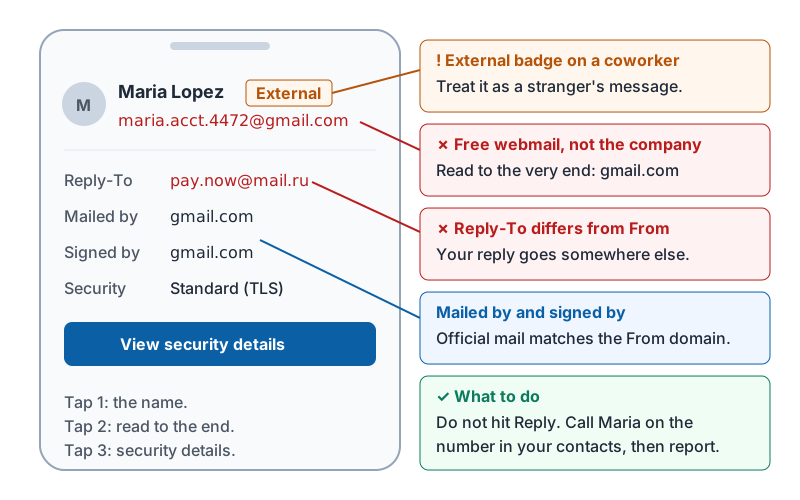
This is the card you are looking for after tap one, with every line that matters labeled.
The extra details and what they mean
Beneath the address, mail apps show a few more lines. They are worth a glance.
| Detail | What it means | When it matters |
|---|---|---|
| Reply-To | Where your reply actually goes | If it differs from the From address, ask why. A boss “from” the company domain with a Reply-To at a free webmail address is a classic setup. |
| Mailed by | The server that delivered the message | A newsletter service name here is normal for marketing mail. A random domain under a message that claims to be your bank is not. |
| Signed by | The domain that put a digital seal on the message | Should match the From domain for anything official. Lesson 6 explains why. |
| “via” | The message was sent on behalf of the From address by another service | Normal for calendar invites, document shares and booking tools. Suspicious when a person’s direct email shows “via” a service you have never heard of. |
| External tag or badge | The sender is outside your organization | A coworker’s name on an external message is a strong warning sign. |
Coworker names from outside
The most effective spoof is not a bank. It is “Maria from accounting” sent from maria.accounting.4472@gmail.com or maria@yourcompany-mail.com. Your brain recognizes the name and skips the address.
Two habits protect you:
- When a coworker’s message arrives with an External badge, treat it as a stranger’s message until you have checked.
- When a coworker asks you to do something unusual by email, reply using a fresh message to their address from your contacts, or just walk over or call. Do not hit Reply.
A quick decision table
| What you found | What to do |
|---|---|
| Address and domain match the name, nothing unusual | Carry on, still check links before clicking (lesson 3) |
| Domain is a look-alike or a free webmail address for a business | Report it (lesson 5). Do not reply. |
| Reply-To differs from From for a request involving money or data | Verify by a channel you already trust before anything else |
| Coworker’s name with an External badge | Call or message them through a known channel |
Try it now
Open your inbox on your phone. For the last three messages that asked you to do anything, find the full sender address and say the real domain out loud. Aim for under ten seconds per message. That is the whole skill.
Remember: tap the name, read to the end, read the domain from the right. Do it every time a message asks you to click, pay or hurry.
Checking your progress…