Drive and the sharing model
Every file in Drive has a list of who can do what. Learn the three access levels, when to use each, and how to read a sharing panel in five seconds.
Sharing replaces attachments
In Workspace you do not send copies of files; you give people access to the one file. That means:
- Everyone sees the same version, always.
- You can change or remove someone’s access later.
- You can see who has access, in one panel.
It also means the sharing panel is where most Workspace mistakes happen. This lesson is about reading it.
The three access levels
| Level | Can | Cannot | Give it to |
|---|---|---|---|
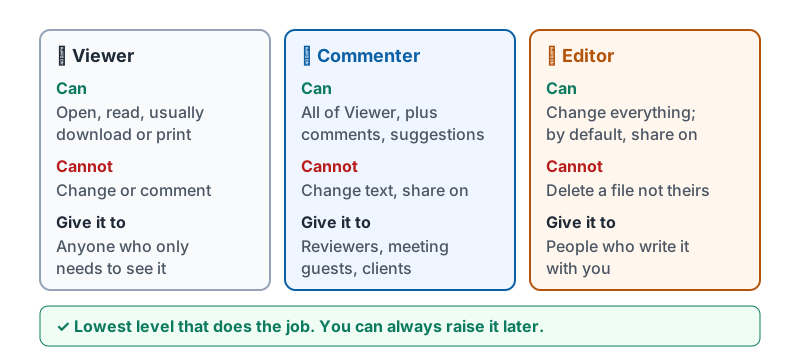
| Viewer | Open, read, (usually) download or print | Change anything, comment | Customers reading a proposal, staff reading a policy, anyone who only needs to see it |
| Commenter | Everything a viewer can, plus leave comments and suggest edits | Change the text directly, share with others | Reviewers, proofreaders, meeting guests adding agenda items, a client giving feedback |
| Editor | Change everything, and by default share with others | Delete the file if they do not own it (they can remove their own access) | People who genuinely write the document with you |
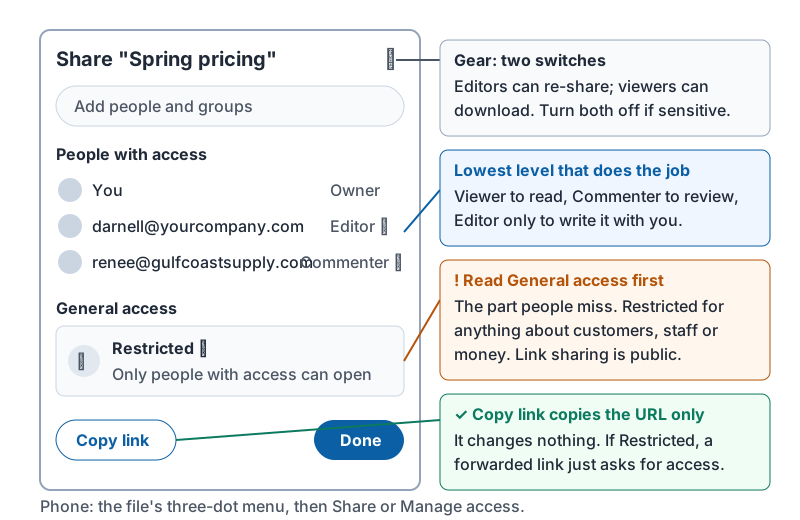
The owner (or the shared drive’s managers) can also stop editors from re-sharing and stop viewers and commenters from downloading. For anything sensitive, do both.
Choose the lowest level that lets the person do their job. You can always raise it later. Lowering it after someone has already copied the file does not help.
The three levels as cards.
Reading a sharing panel
Open any file’s Share dialog and you see two parts:
- People with access: each person or group, with their level.
- General access: who can open it with a link. This is the part people miss.
| General access | Meaning | Use when |
|---|---|---|
| Restricted | Only the people listed above | Default for anything about customers, staff or money |
| Anyone in your organization with the link | Any coworker who gets the link can open it at the level shown | Internal handbooks, menus, schedules that everyone should see |
| Anyone with the link | Any person on the internet with the link, no sign-in | Public material only: a flyer, a published price list. Never for anything you would not post on your website |
Red flags in a panel, in order of severity:
- Anyone with the link: Editor. Anyone on earth can change and re-share the file. Fix it immediately.
- Anyone with the link on a file containing names, prices to one customer, or payroll.
- A former employee or an unfamiliar external address still listed.
- Editor given to someone who only needed to read.
The Share dialog with its parts labeled, including the two switches hiding behind the gear.
Folders and shared drives
Sharing a folder shares everything inside it, now and in the future. Great for “Vendors / Bayside”, dangerous when someone drops the payroll file into a folder shared with the whole company.
A shared drive is owned by the business, not a person. Files stay when people leave, and access is managed by role for the whole drive. Use shared drives for anything the business needs to keep; use My Drive for your own drafts.
Groups make sharing safer
Sharing with a group address (such as frontdesk@yourcompany.com) rather than six individual names means new hires get access by joining the group and leavers lose it when removed. Ask your admin which groups exist before sharing a file with a long list of names.
Checking what you have shared
Drive’s Shared with me shows what others shared with you. To see what you have shared out, open a file and check its panel, or search Drive for files where general access is anyone with the link. Make it a quarterly habit to review the files you own that have external people on them.
Try it now
Open the sharing panel of the three files you worked on most recently. For each, read General access first, then the people list. Downgrade anyone who has more than they need, and if any file about customers, staff or money is on “Anyone with the link”, switch it to Restricted now.
Remember: viewer to read, commenter to review, editor to write. Read General access before the names, and keep anything about customers, staff or money Restricted. Lowest level that does the job.
Checking your progress…