Calendar: scheduling that sticks
A good invite answers why, who, when and what to read first. Learn to build one in Calendar, attach an agenda, and set guest permissions so the meeting runs itself.
A meeting is a document with a time on it
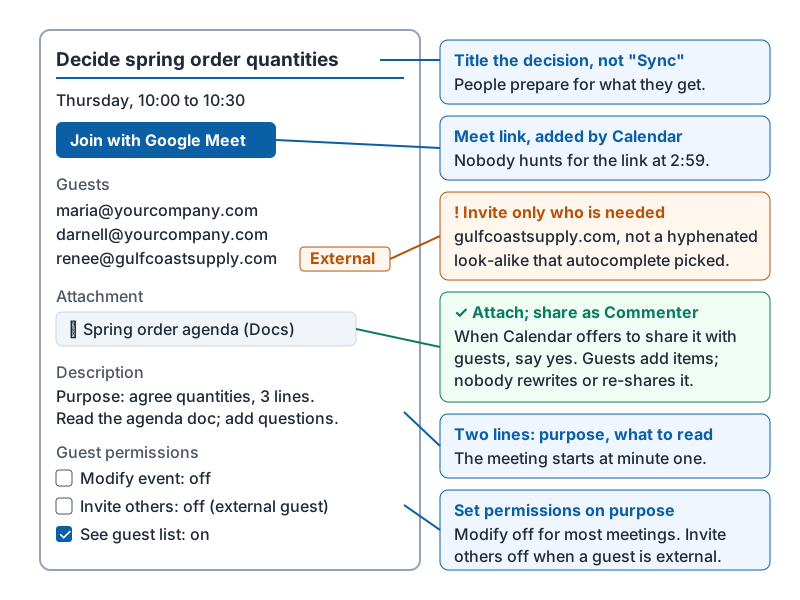
Most meetings fail before they start: no clear purpose, the wrong people, and nobody knows what to prepare. Calendar can fix all three if you fill in the invite properly. A good invite has:
| Field | What to put | Why |
|---|---|---|
| Title | The decision or topic, not “Sync”: “Decide spring order quantities” | People accept and prepare for things they understand |
| Guests | Only the people needed for the decision; others get the notes | Fewer declines and reschedules |
| Time | Use Find a time (desktop) to see when guests are free | No back-and-forth |
| Location or Meet link | A room, or the Meet link Calendar adds automatically | Nobody hunts for the link at 2:59 |
| Description | Two lines: purpose, and what to read or bring | The meeting starts at minute one |
| Attachment | The agenda doc or the file to review | Everything in one place |
Attach the agenda, then share it
When you attach a Drive file to an event, Calendar notices if some guests cannot open it and offers to share it with them. Say yes and choose the access level: Commenter lets guests add agenda items and questions without rearranging your doc; Editor is right when the group writes the doc together. Lesson 5 covers the levels in detail.
Order matters here:
- Create the agenda doc (even three bullet points).
- Create the event with a clear title and the Meet link.
- Attach the doc and accept the sharing prompt.
- Check guest permissions, then send.
A finished invite with every field from the table filled in.
Guest permissions
Each event has three switches that decide how much guests can change:
| Permission | Turn on when | Turn off when |
|---|---|---|
| Modify event | A co-organizer should be able to move it | Most meetings; otherwise anyone can reschedule everyone |
| Invite others | You trust guests to bring the right people | External or sensitive meetings |
| See guest list | Almost always | A customer webinar where attendees should not see each other |
Default to modify off, invite others on for internal meetings and off for external, guest list on.
Recurring meetings and time zones
- Make a weekly meeting recurring once, with an end date. Delete the series when it stops being useful; zombie meetings erode trust in the calendar.
- When inviting someone in another time zone, Calendar shows their local time if you add their zone in Settings; put the time zone in the description too for anyone reading on a phone.
- Use Out of office events to auto-decline invites while away, and Focus time to block work hours so people schedule around them.
Appointment schedules for customers
If customers or vendors need to book time with you, an appointment schedule gives them a booking page with your available slots, so you never trade emails about times. Set the slot length, buffer time and which hours are open.
Running the meeting in Meet
The Meet link in the invite is enough for most meetings. Three habits make it smooth:
- Join a minute early and share the agenda doc on screen.
- Use captions for anyone in a noisy place, and record (if your plan allows) only after telling everyone.
- Finish by writing the decisions in the same agenda doc, so the invite is also the record.
Try it now
Create a real event you need this week. Give it a decision-shaped title, add a two-line description, attach a doc (even an empty one you will fill in), and accept the prompt to share it as Commenter. Check the guest permissions before you send.
Remember: title the decision, invite only who is needed, attach the agenda and share it when prompted, and set guest permissions on purpose. The invite is the agenda and the record.
Checking your progress…