Data validation, stop bad entries at the source
A dropdown or a rule on the column means "Paid", "paid" and "PAID" never happen in the first place.
Why cleaning never ends without it
If five people type into a Status column, you get Paid, paid, PAID, Payed and a blank. Every COUNTIF and pivot table then shows five categories instead of one. You can clean it today; it will be dirty again by Friday.
Data validation puts the rule on the cells. Anyone entering data picks from a list or is stopped when they type something outside the rule.
Four rules that cover most sheets
| Column | Rule | Effect |
|---|---|---|
| Status, Region, Category | Dropdown from a list | Only the listed values can be chosen; tap to pick on a phone |
| Quantity, Discount percent | Number between a minimum and a maximum | Rejects 5000 when you meant 50 |
| Due date, Order date | Is a valid date | Rejects “next week” |
| Reviewed, Paid | Checkbox | A tap toggles true or false; nothing to type |
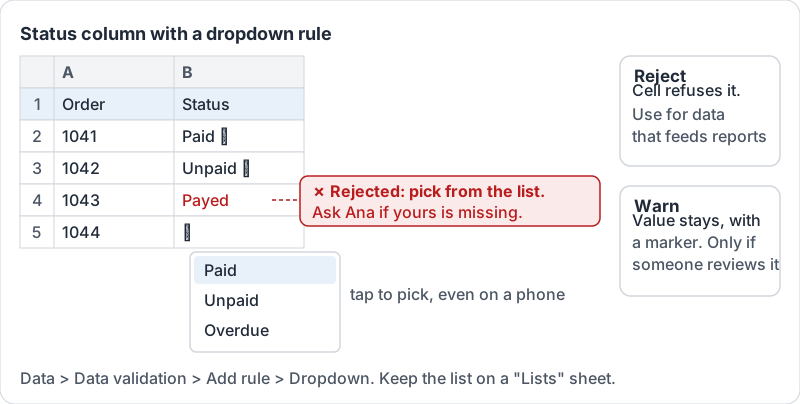
The dropdown is the one to reach for first. Keep the list in a dedicated cells range (for example a “Lists” sheet) so adding a new region means adding one cell, not editing a rule.
A dropdown rule in action, including what happens to a typed value.
Reject or warn
Each rule can either reject the entry (the cell refuses it and shows a message) or show a warning (a small marker appears but the value stays). Reject for anything that feeds formulas or reports. Warn only when exceptions are genuinely allowed and someone will review them.
Add help text to the rule. “Pick the region from the list; ask Ana if yours is missing” saves a dozen questions.
A walkthrough of the data validation dialog, including dropdowns from a range and number rules.
Validation does not fix the past
Adding a rule to a column does not change existing bad values; it marks them. Clean existing data first (filter to the odd values, correct them), then apply the rule so it stays clean.
Try it now
Pick the one column in your sheet with the most spelling variations. Clean the existing values, then add a dropdown rule from a short list and set it to reject other input. Try to type a wrong value and watch it bounce.
Remember: every column people type into by hand should have a rule. Dropdowns first, then number and date rules.
Checking your progress…