Suggesting mode
Propose changes to someone else's text without overwriting it. The owner accepts or rejects each one.
Three modes
Every document has three ways of working, and the difference matters when the document is not yours.
| Mode | What your typing does | Use it when |
|---|---|---|
| Editing | Changes the text immediately | It is your document, or you co-own it |
| Suggesting | Marks your change as a proposal; the original stays visible | You are reviewing or revising someone else’s work |
| Viewing | Nothing; read only | You want to read without risk of nudging a word |
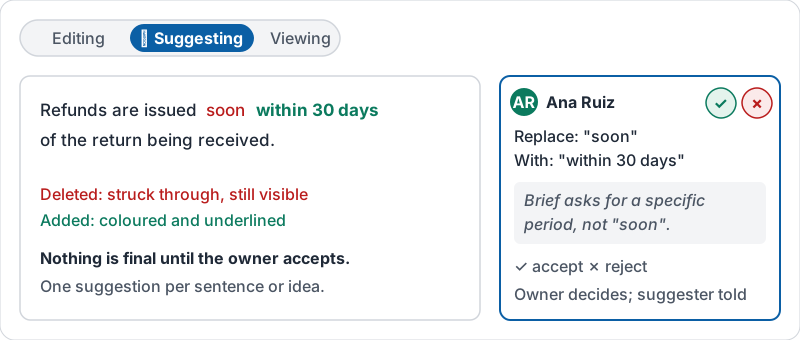
In suggesting mode, deleted text shows with a line through it, added text shows in a colour, and a card in the margin names who suggested it. Nothing is final until the owner accepts it.
What the owner sees when you suggest a change.
Why suggest instead of edit
- The owner sees exactly what you changed and why; they do not have to diff two versions by eye.
- A bad suggestion is rejected with one tap. A bad edit has to be found and undone.
- Several reviewers can suggest at once without stepping on each other.
- The decision stays with the person responsible for the document.
If you are given Editor access on a document you do not own, suggesting mode is still the polite default for anything beyond a typo.
Google’s own twenty-second look at suggestion mode in action.
Making suggestions that get accepted
- Make the change, then say why in the suggestion’s card if the reason is not obvious: “Brief asks for under 100 words.”
- Suggest in small pieces. One suggestion per sentence or idea. A single suggestion that rewrites a page can only be accepted or rejected whole.
- Do not fight over style. If the brief or the owner’s style is clear, follow it.
- Leave the owner’s facts alone unless you are sure. If you doubt a number, comment instead.
Reviewing suggestions on your own document
Read each suggestion, then accept or reject it. You can accept all at once, but only after you have read them; “accept all” on a document you have not read is how a wrong date ends up in a contract. Rejected suggestions vanish; accepted ones become normal text. Either way the suggester is notified.
Try it now
Open a document a colleague owns (or make a copy of one of yours and share it with yourself). Switch to suggesting mode, change one sentence and add a one-line reason in the suggestion card. Notice how the original text stays visible with a line through it.
Remember: in someone else’s document, suggest first. Direct edits are for documents you are responsible for.
Checking your progress…