Gemini in Gmail, Docs, Sheets and Drive
The side panel can draft, summarise, calculate and find things without you pasting anything. Here is what each app's panel is good at, and how to check it.
One panel, four personalities
The Gemini side panel does different jobs depending on the app it is open in. The skills are the same four everywhere: draft, summarise, find, check.
Gmail: draft and summarise
Open a long thread and ask for a summary; you get the decisions and open questions in a few lines. Then ask it to draft a reply with your instructions: “Confirm Thursday, decline the discount politely, ask for the PO number.”
Two checks before you hit send:
- Read the draft against the thread. Did it answer everything that was asked? Did it promise anything the thread does not support?
- Check names and dates. Gemini sometimes picks up a date from an earlier message in the thread.
Docs: write, rewrite and summarise
In Docs, Gemini can draft a section from a brief, rewrite a paragraph in a different tone, shorten, expand, or summarise the whole document. It can also pull from other files in your Drive when you reference them, which is powerful and worth watching: the panel usually shows which files it used.
Habit: after any “write from my Drive” request, open the list of sources it used. If a file is there that you did not expect, check what it took from it.
Sheets: formulas and patterns
In Sheets, Gemini can write a formula from a plain-English description (“sum column D where column B says Paid”), spot trends, build a table or explain what a confusing formula does. It is very good at formulas and only fairly good at arithmetic on data it describes in words.
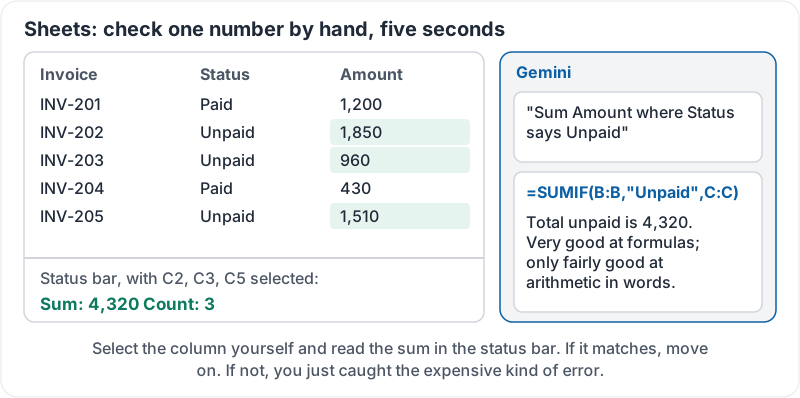
Always do one thing: check one number by hand. If it says “total unpaid is 4,320”, select the column yourself and look at the sum in the status bar. This takes five seconds and catches the most expensive kind of error.
The five-second check in Sheets:
Drive: find and ask
In Drive, the side panel searches by meaning, not just file name: “the contract with the cleaning company from last year” works even if the file is called Agreement_v3_final.pdf. You can ask questions across files: “What did we quote Henderson in 2025?”
Two cautions. Gemini finds what you have permission to see, including files shared with you that you have never opened. And its answer is a summary, not the document. Open the file before you act on anything from it.
| App | Best for | Must-check |
|---|---|---|
| Gmail | Thread summary, drafting replies | Every ask answered; no invented promises; dates |
| Docs | Drafting, rewriting, summarising, pulling from Drive | Which files it used |
| Sheets | Formulas, patterns, explaining formulas | One number recomputed by hand |
| Drive | Finding files by meaning, cross-file questions | Open the source before acting |
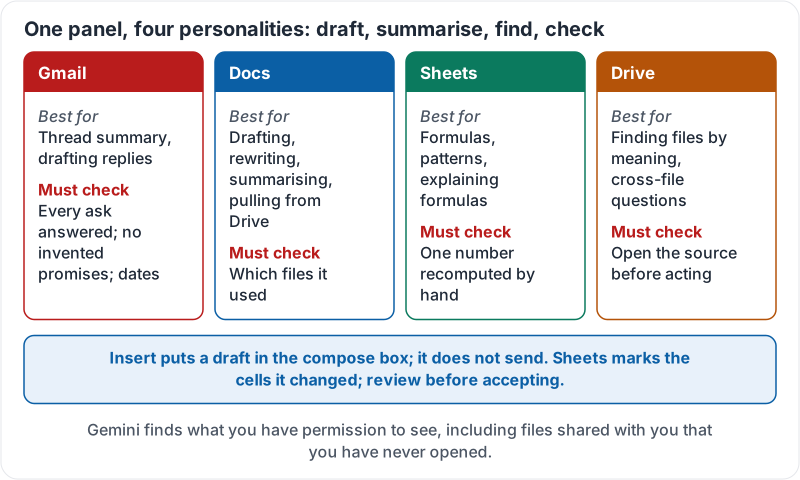
The same table as four cards:
Two short clips from Google Workspace. First, Gemini in Gmail:
Then Gemini in Sheets:
A worked example
Fatima is asked how much the firm quoted a client last year. In Drive she asks: “What did we quote Henderson Logistics in 2025 and in which document?” Gemini answers with a figure and a link. She opens the linked proposal, finds the figure on page 2, and notices the proposal was superseded by a revised one a week later, which Gemini did not mention. She searches “Henderson revised” and finds the real number. Thirty seconds of checking saved a wrong answer to the boss.
Try it now
In Gmail, open a long thread and ask the side panel to summarise it, then draft a reply with two specific instructions. Read the draft against the thread and count the fixes. Then in Sheets, ask for a formula on a real column and check one result by hand.
Remember: draft, summarise, find, check. In Gmail, check every ask was answered; in Docs, check which files it used; in Sheets, recompute one number; in Drive, open the source before you act.
Checking your progress…